Affichage des articles dont le libellé est General. Afficher tous les articles

vendredi, décembre 28, 2007

System.Environment.SpecialFolder

I was programing a small tool, where I need to access to user data, with the .net framework 2.0, those "special folders" are easy identified with the SpecialFolder enumerator, to test the different paths, I have created a console project, here is an illustration :

using System;
using System.Collections.Generic;
using System.Text;

namespace SpecialFolderTester
{
class Program
{
static void Main(string[] args)
{

Console.WriteLine("SpecialFolder.ApplicationData," + Environment.GetFolderPath(System.Environment.SpecialFolder.ApplicationData));
Console.ReadKey();
}
}
}


And here is all results :

- SpecialFolder.ApplicationData => C:\Documents and Settings\Administrator\Application Data


- SpecialFolder.CommonApplicationData => C:\Documents and Settings\All Users.WINDOWS\Application Data


- SpecialFolder.CommonProgramFiles => C:\Program Files\Common Files


- SpecialFolder.Cookies => C:\Documents and Settings\Administrator\Cookies


- SpecialFolder.Desktop => C:\Documents and Settings\Administrator\Desktop


- SpecialFolder.DesktopDirectory => C:\Documents and Settings\Administrator\Desktop


- SpecialFolder.Favorites => C:\Documents and Settings\Administrator\Favorites


- SpecialFolder.History => C:\Documents and Settings\Administrator\Local Settings\History


- SpecialFolder.InternetCache => C:\Documents and Settings\Administrator\Local Settings\Temporary Internet Files


- SpecialFolder.LocalApplicationData => C:\Documents and Settings\Administrator\Local Settings\Application Data


- SpecialFolder.MyComputer =>


- SpecialFolder.MyDocuments => C:\Documents and Settings\Administrator\My Documents


- SpecialFolder.MyMusic => C:\Documents and Settings\Administrator\My Documents\My Music


- SpecialFolder.MyPictures => C:\Documents and Settings\Administrator\My Documents\My Pictures


- SpecialFolder.Personal => C:\Documents and Settings\Administrator\My Documents


- SpecialFolder.ProgramFiles => C:\Program Files


- SpecialFolder.Programs => C:\Documents and Settings\Administrator\Start Menu\Programs


- SpecialFolder.Recent => C:\Documents and Settings\Administrator\Recent


- SpecialFolder.SendTo => C:\Documents and Settings\Administrator\SendTo


- SpecialFolder.StartMenu => C:\Documents and Settings\Administrator\Start Menu


- SpecialFolder.Startup => C:\Documents and Settings\All Users.WINDOWS\Start Menu\Programs\Startup


- SpecialFolder.System => C:\WINDOWS\system32


- SpecialFolder.Templates => C:\Documents and Settings\Administrator\Templates

vendredi, octobre 12, 2007

Enable sound on a virtual machine

After installing a windows 2003 VM for example using Microsoft Virtual PC, by default sound is disabled. To enable it :
1/ - go to control panel > administrative tools > services, and activate windows sound (set automatic), then start the service
2/ - go to devise manager, you found sound blaster 16 devise (not installed), click update driver, and use this SB15 win2003 driver to install it (unzip it to c:\windows\inf for example)

now I will hear my screamer radio while I develop :-)

mercredi, octobre 10, 2007

Excel 2007 Issue

On Friday 28 September, a Microsoft employee noted that the latest version of Excel has problems with certain combinations of multiplication that result in 65,535. For example, if you use the latest a spreadsheet to multiply 77.1 by 850, it will show the result as 100,000. Or if you multiply 10.2 by 6425, the answer again is shown as 100,000. The multiplication problem 20.4 by 3,212.5 also gives an incorrect answer.


Today a fix for this bug is available :
Excel 2007: http://download.microsoft.com/download/6/1/3/61343075-aa12-4152-a761-fccc16d6cef4/office-kb943075-fullfile-x86-glb.exe

KB Articles have been posted as well:
Excel 2007:
http://support.microsoft.com/default.aspx/kb/943075/
Excel Services 2007: http://support.microsoft.com/default.aspx/kb/943076

dimanche, septembre 23, 2007

Scriptomatic 2.0

Scriptomatic is a useful utility that lets you generate all sorts of useful WMI scripts, less work for administrators, easy way to detect and penalize bad users :-)


Download it here

jeudi, juin 28, 2007

Open text file using c#

Many times we want to view the logs of our developed application in notepad, it is so simple :

using System.Diagnostics;
.....
System.Diagnostics.Process.Start("log.txt");

Minimizing a window to the SysTray using C#

Step 1 : Override the close event of the form, like that after clicking on close button, the environement will not exit. Then, test session status to not block windows session closing

private const int WM_QUERYENDSESSION = 0x11;
private bool endSessionPending;

protected override void WndProc(ref Message m)
{
if (m.Msg == WM_QUERYENDSESSION)
endSessionPending = true;
base.WndProc(ref m);
}

protected override void OnClosing(CancelEventArgs e)
{
if (endSessionPending)
{
e.Cancel = false;
}
else
{
e.Cancel = true;
MinimizeInTray();
}

base.OnClosing(e);
}


Step 2 : The form will not appear on taskbar

private void MinimizeInTray()
{
this.ShowInTaskbar = false;
this.Visible = false;
this.WindowState = FormWindowState.Minimized;
}


Step 3 : Add a notify icon to the form, then you can choose to put this code on notify icon click event or to a menu item click event :

private void openForm_Click(object sender, System.EventArgs e)
{
ShowFromTray();
}

private void ShowFromTray()
{
this.WindowState = FormWindowState.Normal;
this.ShowInTaskbar = true;
this.Visible = true;
}

mercredi, mars 07, 2007

Insert c# code in my blog

I've been asked several times about how the C# code in my blog gets formatted, use this GREAT! code formatter :

Link : http://www.manoli.net/csharpformat/

Example :

using System;
using System.Data;
using System.Data.SqlClient;
using System.Data.SqlTypes;

public partial class MyClass
{
//...
}

mardi, février 20, 2007

Send mail with .net 2.0

first of all you must use System.Net.Mail :
using System.Net.Mail;

Then it's a easy task :
MailMessage message = new MailMessage();
message.From = new MailAddress("sender@microsoft.com");
message.To.Add(new MailAddress("recipient@foo.bar.com"));
message.CC.Add(new MailAddress("cc@foo.bar.com"));

message.Subject = "This is my subject";
message.Body = "This is the content";

SmtpClient client = new SmtpClient();
client.Send(message);


to confgure the smtp client there is 2 ways:
1- using client instance : client .Host = "MailServer";
2- add the folowing directive to the web.config for ASP.net/app.config for winform:
network host="MailServer" port="25" userName="username" password="secret" defaultCredentials="true"

mardi, janvier 30, 2007

xnasharpnes

looking up for new emulators as usual, I found this cool nes emulator based on XNA, it's working for windows and Xbox360

check the open source project here

mardi, mars 14, 2006

Activate IntelliSense on "Skin" files

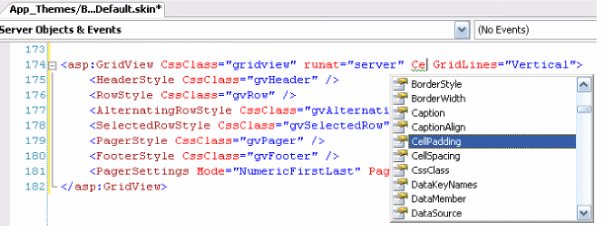
with Visual studio 2005 IntelliSense is everywhere, to activate it on skin files, just go to Tools > Options > Text Editor > File Extension, enter skin in the extention textbox, and choose User Control Editor as editor :


then enjoy it :

jeudi, janvier 12, 2006

Microsoft next GEN!


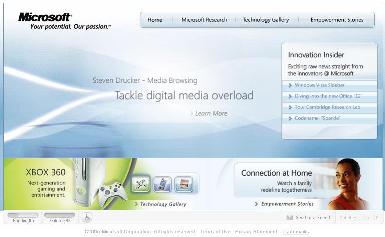
I was navigating over the Net, suddenly i find this Microsoft page talking about futur versions & téchnologies, the site design and animation is realy beautiful, check it here!

jeudi, décembre 15, 2005

ListView sorting


private int sortColumn = -1;

//List view click event
private void listView_ColumnClick(object sender, System.Windows.Forms.ColumnClickEventArgs e)
{
// Determine whether the column is the same as the last column clicked.
if (e.Column != sortColumn)
{
// Set the sort column to the new column.
sortColumn = e.Column;
// Set the sort order to ascending by default.
listViewAllMissions.Sorting = SortOrder.Ascending;
}
else
{
// Determine what the last sort order was and change it.
if (listViewAllMissions.Sorting == SortOrder.Ascending)
listViewAllMissions.Sorting = SortOrder.Descending;
else
listViewAllMissions.Sorting = SortOrder.Ascending;
}

// Call the sort method to manually sort.
listViewAllMissions.Sort();
// Set the ListViewItemSorter property to a new ListViewItemComparer
// object.
this.listViewAllMissions.ListViewItemSorter = new ListViewItemComparer(e.Column,
listViewAllMissions.Sorting);
}

//Compare class
class ListViewItemComparer : IComparer
{
private int col;
private SortOrder order;
public ListViewItemComparer()
{
col=0;
order = SortOrder.Ascending;
}


public ListViewItemComparer(int column, SortOrder order)
{
col=column;
this.order = order;
}
public int Compare(object x, object y)
{
int returnVal= -1;
returnVal = String.Compare(((ListViewItem)x).SubItems[col].Text,
((ListViewItem)y).SubItems[col].Text);
// Determine whether the sort order is descending.
if(order == SortOrder.Descending)
// Invert the value returned by String.Compare.
returnVal *= -1;
return returnVal;
}
}

vendredi, novembre 25, 2005

Pan comido!

I have just installed MS Project server 2003 with SQL 2005 final version, it is perfectly working. With the CTP version of SQL 2005 the installation failed because of a stored procedure problem.
I also migrate from my SQL 2000 server to 2005 without any problem, neither backup nor restore!
Super, I love Microsoft :) ...

mardi, novembre 15, 2005

The My namespace

The My Namespace

Visual studio 2005 helps really people to be lazy, its simplicity returns the feasibility of some tasks very quikly, with only one line of code we do much things.

The My namespace includes the following classes, each of which includes a number of useful members:
- Application
- Computer
- Forms
- Resources
- Settings
- User

For example, to play an audio file in Visual Basic 2005, rather than using DirectX or Win32 API calls, you could write this simple single line of code :
My.Computer.Audio.Play("C:\Beep.wav")

Or, to play a system sound, you might write code like this : My.Computer.Audio.PlaySystemSound(SystemSounds.Asterisk)

In addition, My namespace supplies functionality that otherwise requires substantial code. For example, the following code demonstrates how you can use simple code to ping a computer :
If My.Computer.Network.IsAvailable Then
If My.Computer.Network.Ping("http://www.microsoft.com") Then
MsgBox("Microsoft's site is available.")
End If
End If

Working with the file system has never been easier. My.Computer.FileSystem provides a flat, stateless, discoverable, and easy-to-use way to perform common file system operations. File system operations such as copying, deleting, moving, and renaming files and folders are at the core of My.Computer.FileSystem. For example, developers frequently require file, folder, and drive properties (such as a file's size, encoding, and so on). Using My.Computer.FileSystem, commonly referenced file, folder, and drive properties can be obtained easily. For example, to display the size of each drive in your system, you might write code like the following:
For Each drv As DriveInfo In My.Computer.FileSystem.Drives
If drv.IsReady Then Debug.WriteLine(String.Format( _ "{0}:\ {1:N0}", drv.Name, drv.TotalSize))
End If
Next

The My.User class provides information about the current user, including Name and IsInRole properties. You could use code like the following to display the current user's information and whether the user is an administrator :
MsgBox(My.User.Identity.Name & ":" & _ My.User.IsInRole("Administrators"))

If you wanted to determine the current user's application data folder, you could use simple code like the following :
MsgBox( _ My.Computer.FileSystem.SpecialDirectories.CurrentUserApplicationData)

The My namespace also adds functionality that returns many of the RAD features of Visual Basic 6 to the .NET development platform. For example, Visual Basic developers historically accessed forms by name, relying on the runtime engine to maintain a collection of all the available form classes. Using the new My.Forms collection, developers can write code to open and interact with an instance of a form class created as part of a solution, like the following :
My.Forms.HelpForm.Show()

In addition, the My namespace includes a number of other dynamically created collections, including Forms, WebServices, Resources, and Settings. The My.WebServices collection allows developers to easily call Web Service methods taking advantage of IntelliSense and strong typing, and makes the call simpler as well. For example, imagine a Web Service named Numbers that has already been declared in a project. Calling the NumToStr method of the Web Service couldn't get much easier than this :
MsgBox(My.WebServices.Numbers.NumToStr(123.45))

The My namespace has been devised to make it simpler for Visual Basic developers to accomplish their goals with less work, and with less searching through multiple namespaces. You'll find that many arduous tasks in previous releases are now only a single reference away.

From MSDN

lundi, octobre 24, 2005

TOP 10 Visual Studio IDE improvements

Nice post, from Younes's blog, Microsoft MVP (from C# Product Manager at Microsoft, Daniel Fernandez) .
Check Younes'blog article

1- Refactoring: Which is the automation of code restructuration. An exemple of this is when for example, you rename a TextBox, the IDE tracks all references found in scope and update the code automatically. This is the "rename refactoring"The IDE offers the following refactoring options:
Extract Method
Encapsulate Field
Extract Interface
Reorder Parameters
Remove Parameters
Rename
Promote Local Variable to Parameter

2- Edit & Continue: This feature lets you update your code while in debug mode and apply changes without having to restart building and executing the application.

3- Code snippets: This feature inserts common code templates for you. For example, a loop, a property and the likes...

4- IntelliSense enhancement: First, IntelliSense intelligently provides completion lists depending on the generic type signature. Second, IntelliSense now provides more context-sensitive filtered completion lists. For example, when you're typing a try/catch clause, IntelliSense will automatically filter all types so that only exception types are visible in the completion list.

5- Class Designer: Class Designer is a new feature that provides a visual representation of your source code and .NET types. As with other visual designers in Visual Studio 2005, changes made visually are reflected in the code, and vice versa.

6- Debugger Visualizers: Visualizers enable developers to visualize complex data types such as XML data or a DataSet while in debug mode. Visualizers are extensible, so developers and component providers can create custom visualizations for their own types.

7- Object DataBinding: Middle-tier component developers can now easily bind their business objects, including generic collections, to Windows Forms or ASP.NET Web controls.

8- Configurable Code Formatting and Coloring: C# developers spend a lot of time beautifying their code. Visual C# 2005 provides customizable configuration settings that enable you to control every aspect of your code, including formatting options for new lines, spacing, and wrapping. You'll also be able to customize coloring of .NET types such as value types, delegates, enums, and interfaces.

9- Code definition window: The Code Definition Window dynamically displays the definition of any type that you place your cursor on. This handy feature simplifies the process of seeing two sets of code at the same time.

10- Auto "using" Statements: How many times have you been typing code in Visual Studio and you suddenly notice that IntelliSense stops working? One of the most common reasons for this is that your code is missing a using statement to fully qualify the data type. Visual Studio 2005 can now intelligently detect whether your code is missing a using statement through a Smart Tag. You will have the option of adding a using statement or providing the fully qualified name of the type by including the namespace.

samedi, juillet 09, 2005

windows form or web form application ?

Among question that I am often posed before a development of small application, is what solution will I choose Windows form or Web form. Sometimes the choice is simple, but other times it is difficult and complicated. According to my experiment, I collected a certain number of advantages, with regard to a Web application :

- A Web application can be accessed from anywhere in the world where an Internet connection is available;
- the client doesn't need to be running Windows;
- A Web application is easy to deploy and update;

However a Web application is poor on certain criteria, where a Windows application form takes over :

- web application's user interface is quite poor. Some event are dificult to emitate, I would say even impossible, like drag and drop and right-clicking the mouse;
- Even when we do manage to do rich interface tricks, it usually requires an insane amount of client script, a kind of code that is particularly hard to write and debug;
- A Web application uses a lot of server resources, bandwidth, and user patience because most things have to be done at the server with a round trip and some waiting involved;
- Printing is very limited;
- Some of the problems above can be resolved through the use of plug-ins or ActiveX controls, but those in turn tend to have the same deployment problems.

I will like, if you have points to add, do not hesitate to add them in comments. Thank you